.png?width=100&height=75&name=PETALFAST_Logo-navy%20(1).png)
- Log in to CannaBI
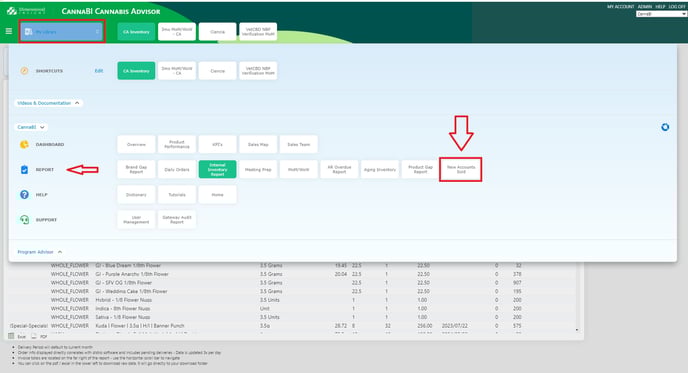
- Navigate to the 'Reports' section via the menu drop down and select the 'New Accounts Sold' report
New Accounts Sold Report
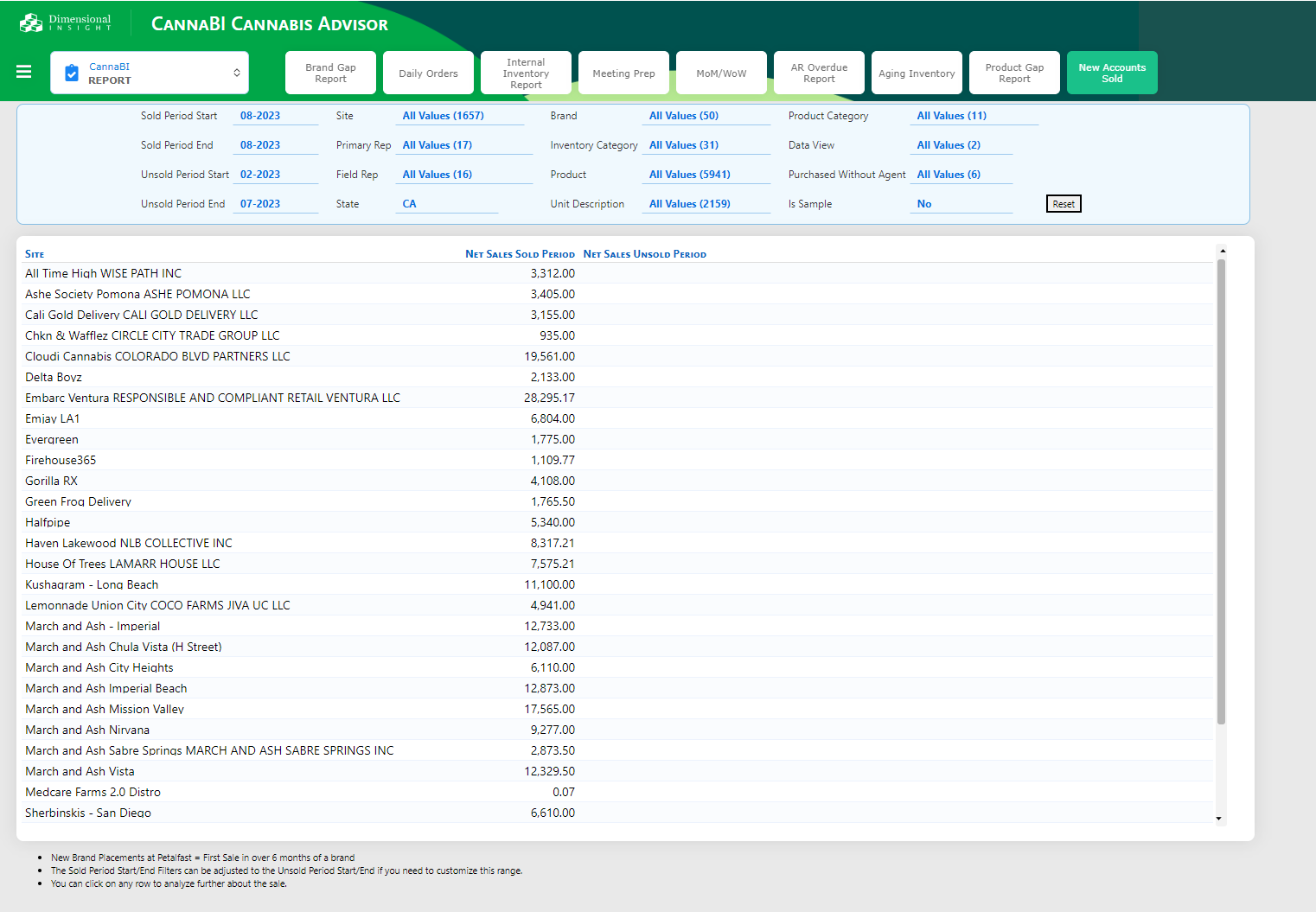
- Sold Period Start + End is the time range in which new brand / product was confirmed delivered
- Unsold Period Start + End is the time range in which the brand / product was not and/or never purchased
*Petalfast new placement is defined by a organically new placement or a 6 month non buy period*
*report default time range is set to current month sold period (sold period start + end = current month) with an unsold period of the prior six months (unsold period start = 6mos prior to current month / month 1 of 6 + unsold period end = 1mo prior to current month / month 6 of 6)
Examples of 6mo non buy range
August 2023 new placement accounts
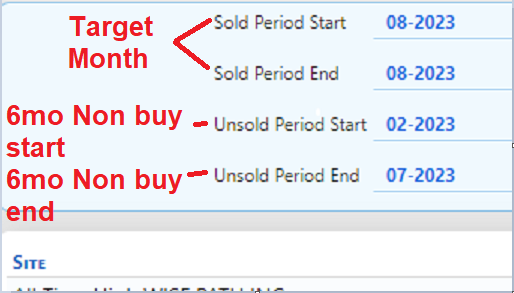
sold period for month of Aug (start+end)
unsold period 6mos prior (start Feb / end Jul)
- Utilize filters to hone down results (e.g., brand, primary rep, product, etc)

Example of finding new brands placed on a specific account if no brand filter has been selected
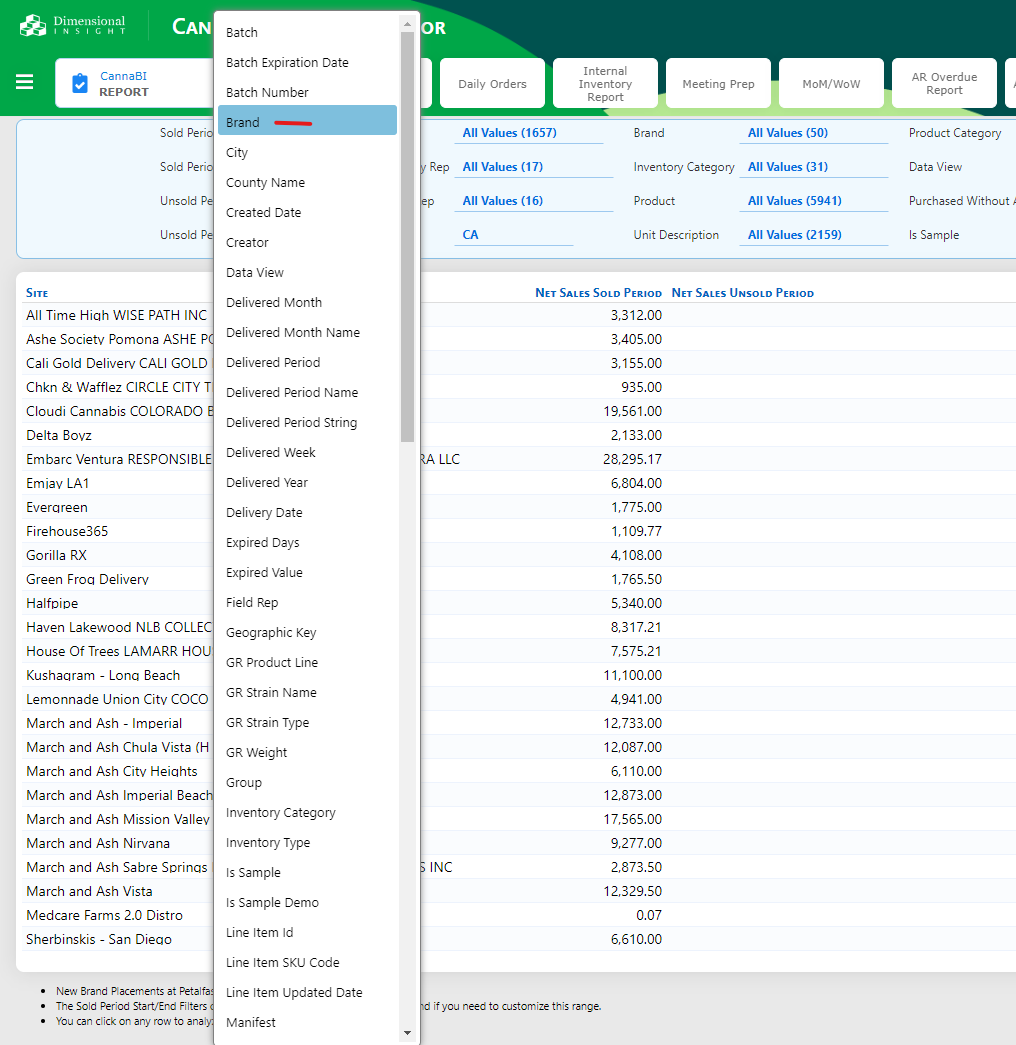
- Click directly on desired retail account on report (Embarc Ventura) to open dimension menu
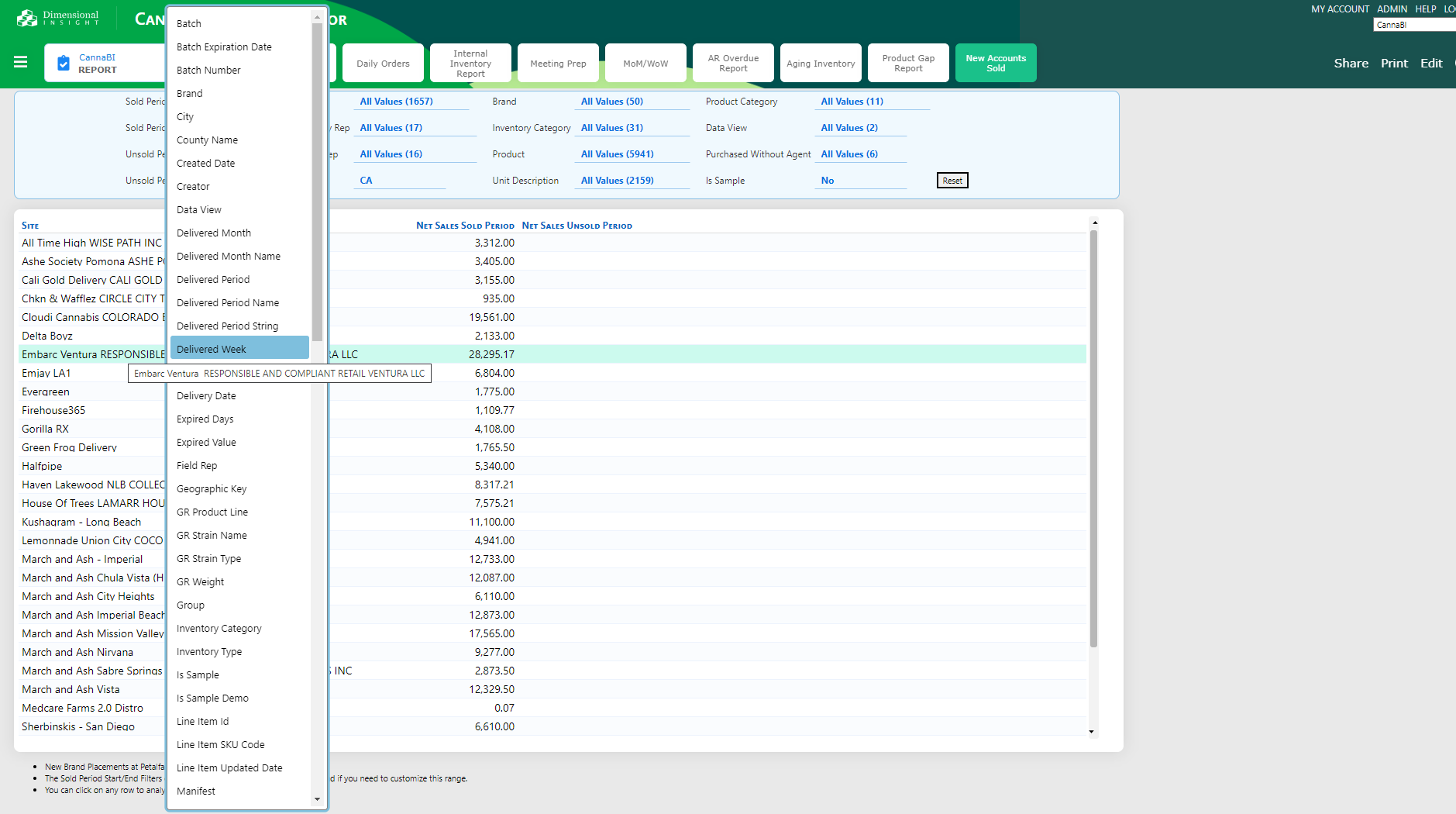
- select desired dimension (brand)
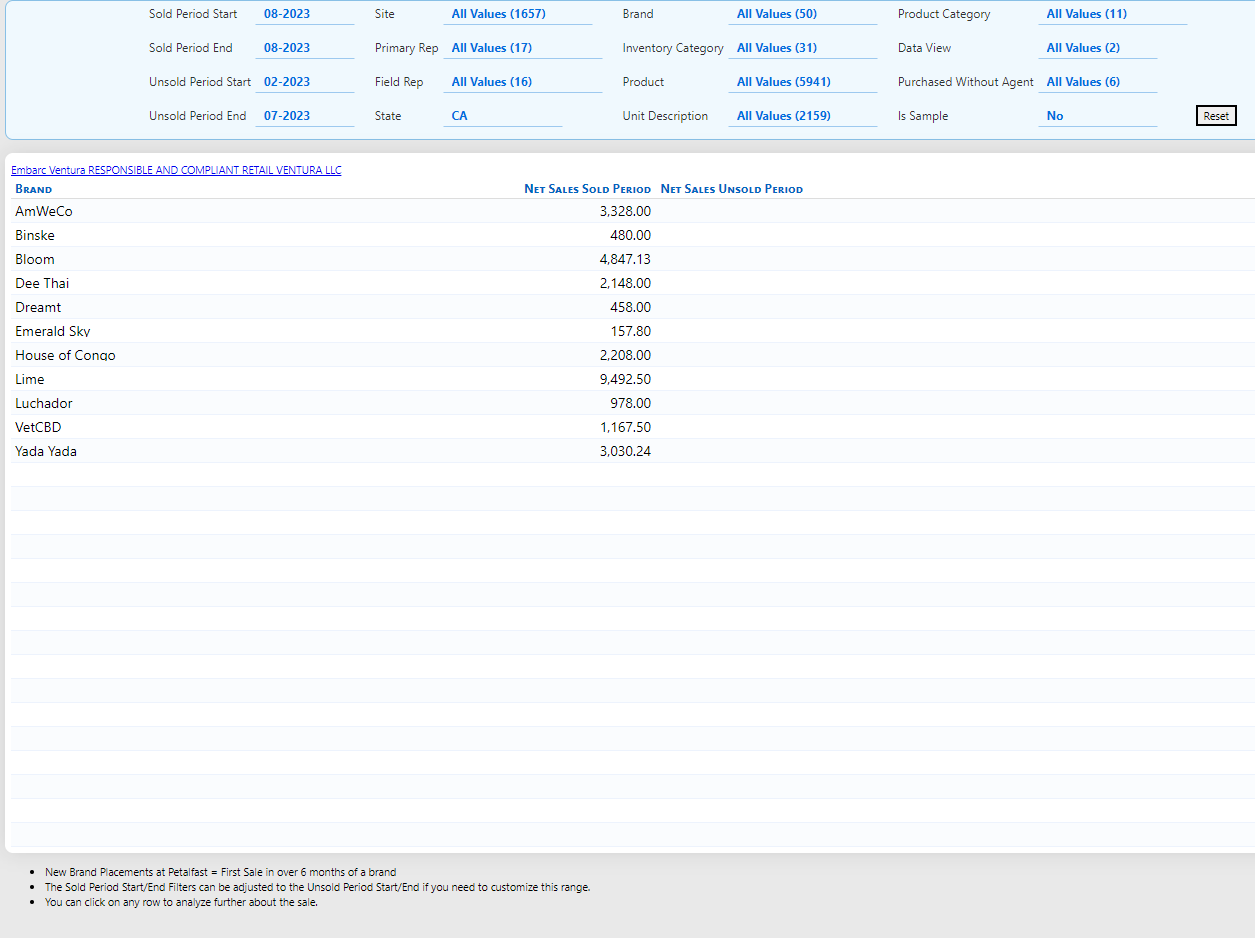
- report now displays all new brand placement totals in sold time period
- To go a step further, dive in to a brand for even further detail, let's look at AmWeCo products sold for Embarc Ventura by clicking on AmWeCO and selecting 'product'
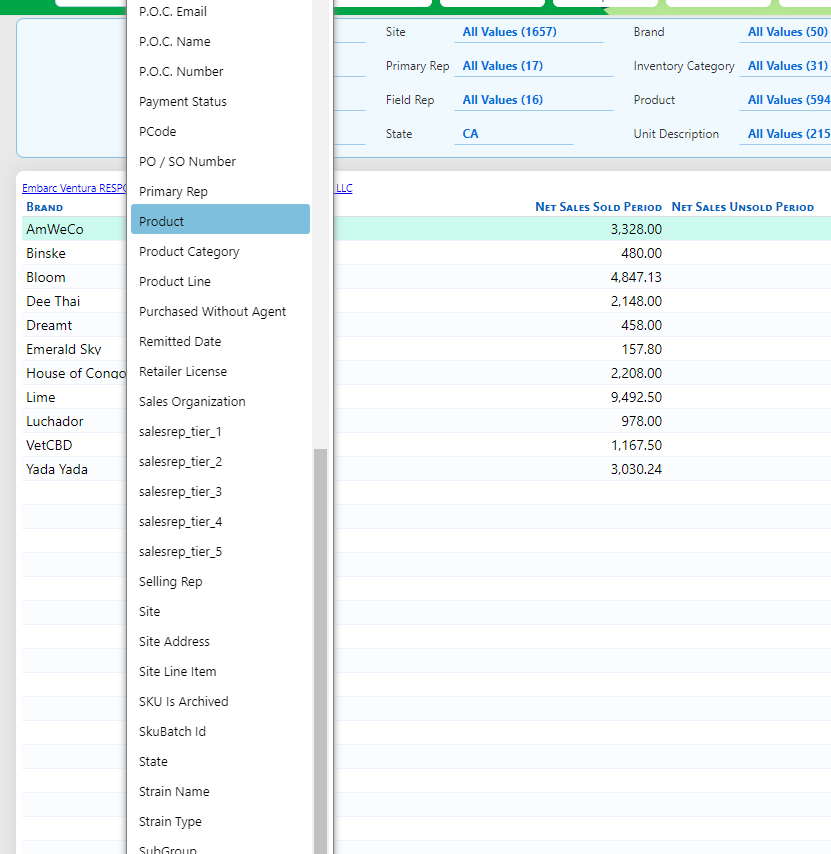
- select desired dimension (brand)
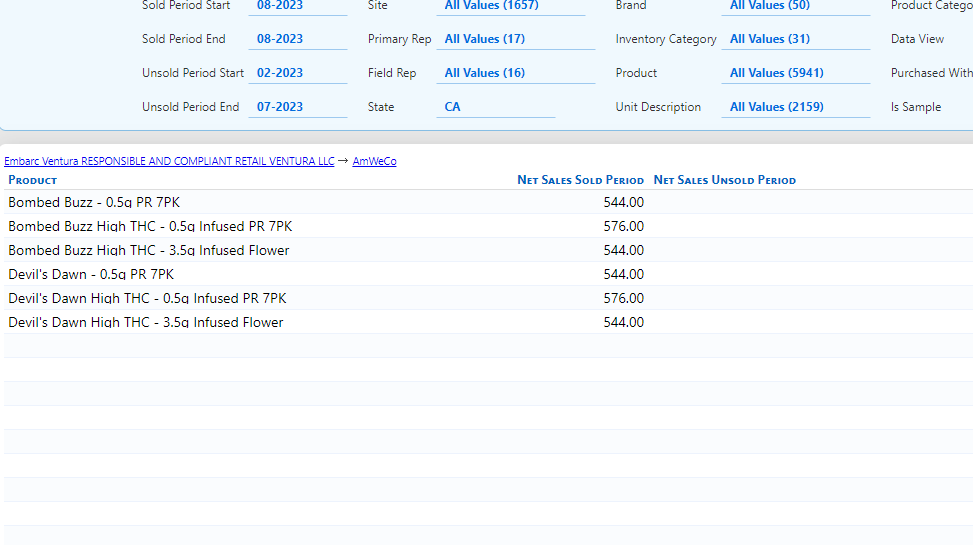
- To return to the brand list for the selected account by clicking the AmWeCo on the bread crumb trail
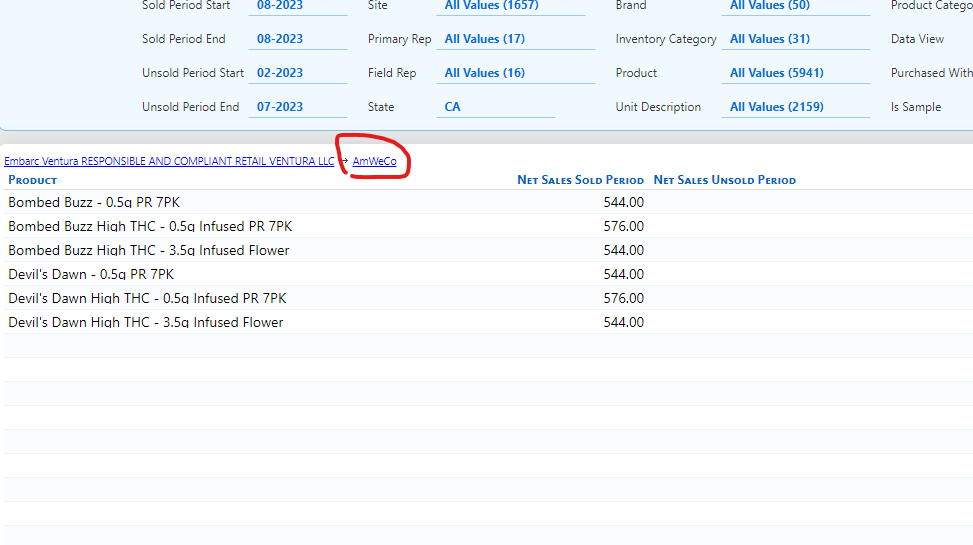
---------->>> - Utilize the bread crumbs to return to the previous view or select the 'reset' button on right of filter set to clear all