.png?width=100&height=75&name=PETALFAST_Logo-navy%20(1).png)
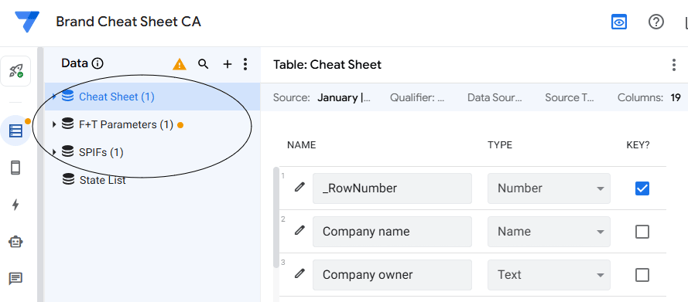
The Brand Guide contains 3 views: Cheat Sheet, F+T Parameters, and SPIFs
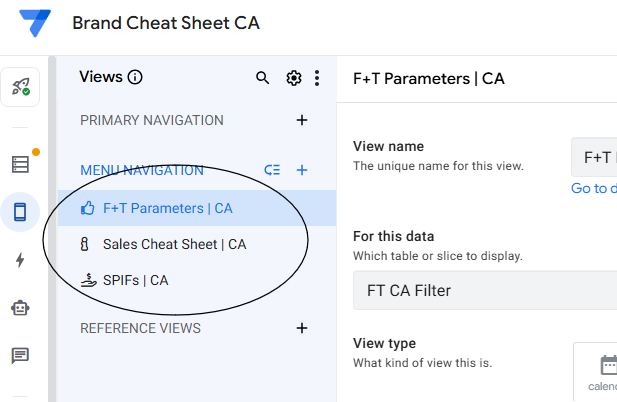
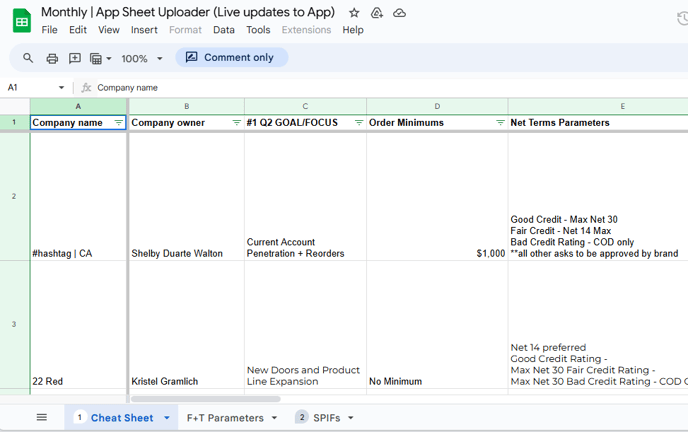
The data sources for these respective views are in the google sheet file 'https://docs.google.com/spreadsheets/d/1L4qvH-OWsN6Trm0X4qdpXrkMS6LYRoIKQVb93qxGSv0/edit?gid=0#gid=0' and each data source is a separate tab with the same view labels
In Appsheet, if you want to add a column of data to a view:
- Create that column in the google sheet and make sure it is labeled with field header in row 1
- In Appsheet, click the 'regenerate schema' button, this will pull that new column into the Appsheet data table schema. If this step is skipped and there is a labeled column in the google sheet that isn't brought into Appsheet, at some point the app will be unusable and an error screen will pop up whenever someone tries to use it saying there is a mismatch in columns for the table. This is quickly remedied after the schema is regenerated.
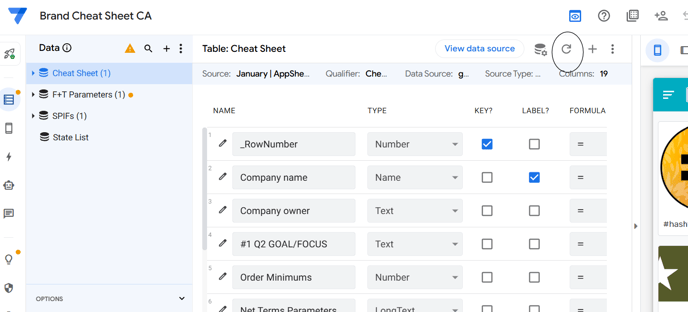
3. Once the new column is pulled into Appsheet, it will try to guess the data type and usually it does well at this, but you still want to verify and change it if necessary to make sure it's the data type you want.
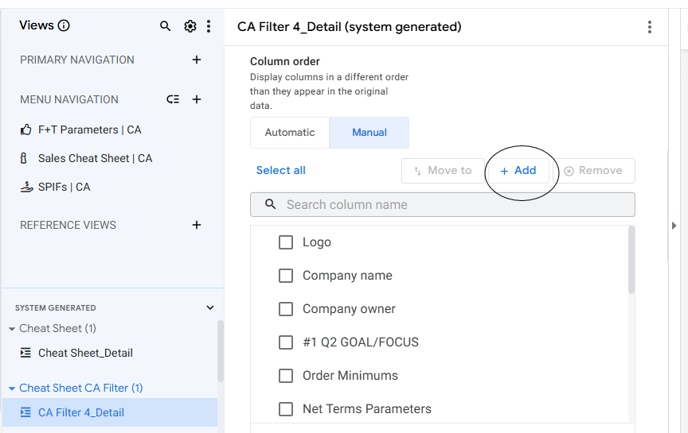
4. Now that the column is added to your table in Appsheet, the next step is to add that column to the view. In the 'Views' section, there are general view configurations at the top and below where it says 'system generated' are the detail level configurations for that view. Here you can adjust the column order and click the add button to find the missing data column that you want to bring into the view.
5. Once the column has been added to the view, you should be able to refresh the front-end of the app and see the new field. One thing to note - if you simply add the new column but have no values in the cells within that column, Appsheet will hide the new field completely from the front-end. Once values are entered in and you refresh the app, you should then see the field and the respective value.
In Appsheet, if you want to remove a column of data to a view:
1. If you remove a column from a data source table when it is actively being used by a view or other calculations in the app, the app will result in an error.
2. Remove all view and formula references to that column first.
3. If the data source for the table is a google sheet, delete the column from the google sheet and then immediately refresh the schema for that data source in the Appsheet editor. This will remove the column.